

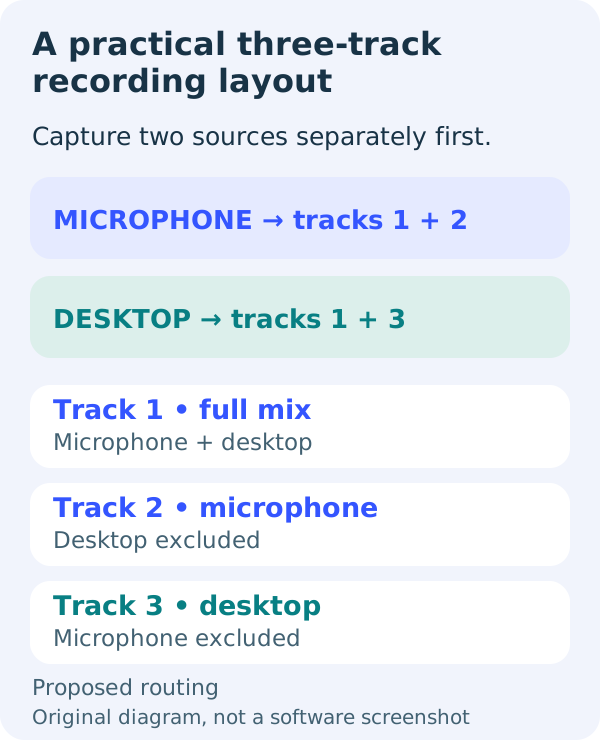
| Source | 1: full mix | 2: mic | 3: desktop |
|---|---|---|---|
| Microphone | On | On | Off |
| Desktop audio | On | Off | On |
Separate-audio recording checklist
0 of 7 complete · saved on this device
OBS: source-to-track assignments · official help checked 2026-10-18
OBS: enable recording tracks and choose a container · official help checked 2026-10-18
OBS: players versus multitrack editors · official help checked 2026-10-18
Two settings, two different jobs
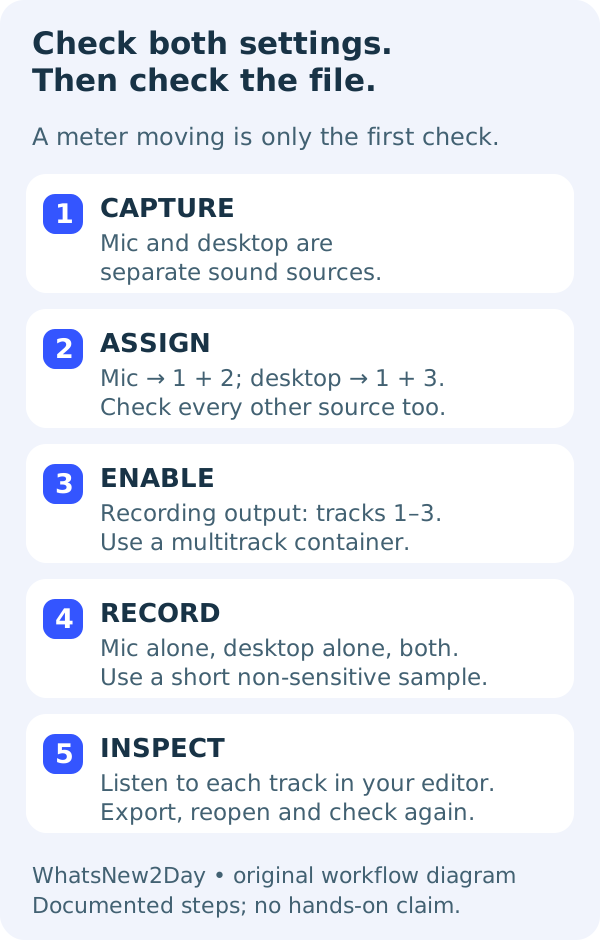
Source routing says where each sound goes. Recording-track selection says which of those tracks are saved. Selecting track 2 for the microphone is insufficient if track 2 is not enabled for recording. Equally, enabling three recording tracks does not isolate anything while all sources remain assigned to all three. OBS documents up to six recording audio tracks; this guide deliberately uses three.
Why keep a full mix on track 1?
A complete mix is useful for straightforward playback, while the isolated tracks let you adjust voice and desktop sound separately in an editor. Track 1 is a convention in this example, not a guarantee about your current profile. Many players play only one audio track at a time. Hearing just one source in a player does not prove the other tracks were never recorded; inspect the file in an editor that supports them. The recording contains tracks inside one media file, not automatically three separate audio files.
Windows: whole desktop or one application?
If you only need to separate your microphone from all desktop sound, two sources may be enough. To separate a game from a call or another app, capture those applications separately before routing them. OBS documents Application Audio Capture (BETA) from OBS 28 on Windows 10 version 2004 or later and Windows 11. OBS 30.1 also added audio capture to Window Capture and Game Capture sources. The exact application can still have capture limitations.
Avoid recording the same desktop sound twice
When using per-application audio sources, OBS advises disabling the global Desktop Audio source in Settings → Audio to avoid echo. Do that only after deciding that the individual app sources cover the sound you need. Otherwise, removing the global source may remove wanted sound too. Recheck every scene used in the recording. A second route to the same sound is not an extra independent recording of a different source.
macOS has a different capture path
OBS 30 or later on macOS 13 Ventura or later offers a macOS Audio Capture source for all desktop audio or a selected application. OBS 28 and 29 on macOS 13 or later use macOS Screen Capture for this capability; hiding that source removes its audio. Older macOS versions need a separate capture-software approach. Follow the official instructions for your versions instead of looking for a Windows-only source name. Once captured, verify the source-to-track assignments and recording tracks.
What separate tracks cannot repair
A microphone can physically hear speakers, a keyboard or another person. That sound is already inside the microphone source; assigning it to track 2 will not remove it. Likewise, if a call and game already arrive as one desktop source, recording that source onto two tracks merely copies the same mixture. Separate capture sources before recording when you need independent control. This workflow does not promise to recover isolated sound from an old mixed recording.
Do not confuse recording tracks with stream or VOD tracks
This checklist is for a local recording. If you stream at the same time, preserve and verify the separate Streaming and platform VOD track settings before going live. Do not assume that selecting three Recording tracks changes what viewers hear. Make the local test first and use the platform’s supported preview or test process for the live path.
Scope: documented workflow, not a hands-on test
Official OBS sources were checked on 18 October 2026. We did not run OBS or an editor for this guide, and do not claim a measured recording, successful export or universal editor support. The diagrams explain the proposed routing; they are not application screenshots. Your sample recording is the acceptance evidence. Prices, third-party plug-ins and virtual audio cable products are outside this guide.
Inspect the exact editions
Open the full evidence record before choosing. A documented candidate is not a completed migration test.
References and scope
Official help checked 18 Oct 2026. Plan, role and region limits still apply; this is a planning checklist, not a completed migration.